Tesla Software Release 2025.46.5
Last updated 23-Dec-2025
Tesla Software release 2025.46.5 including Dashcam Viewer Update, Dog Mode Live Activity on iOS, FSD (Supervised) v13.2.9 Down Under, Full Self-Driving (Supervised) Down Under, Light Show Update, Minor Updates, Navigation Improvements, Paint Shop, Phone Left Behind, Phone Left On Wireless Charger, Santa Mode Updates, Save Charge Limit by Location, SpaceX Docking Simulator, Tesla Photobooth, Vision-Based Attention Monitoring.
Included releases
2025.46.5, (<0.1% of cars)
Regional coverage by model
North America-----Europe-----RoW---MY-
- Seen in AU
- Seen on MY MY(J)
- Seen on AP Hardware HW4
- Seen on MCU hardware Ryzen
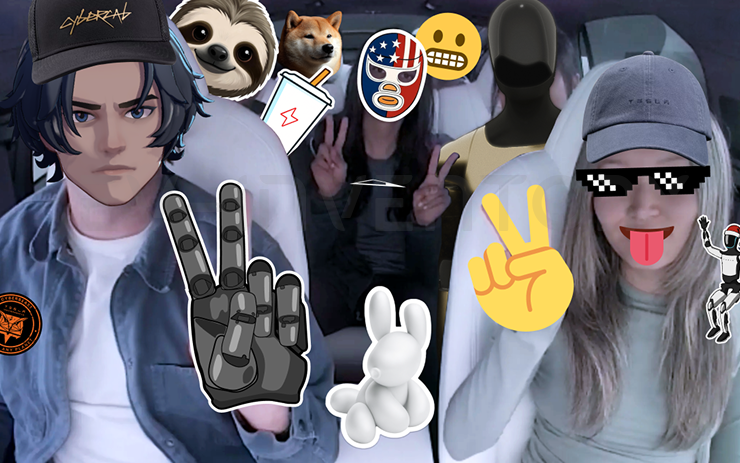
Tesla Photobooth (part of 2025.46.5)
Turn your car into a photobooth! Take selfies from inside your Tesla and give yourself a makeover with fun filters, stickers, and emojis. Share your stylish photos with friends and family right from the Tesla App. Your car must be in Park. Requires Tesla App version 4.51.5+.
Go to App Launcher > Toybox > Photobooth.
- Seen in AU
- Seen on MY MY(J)
- Seen on AP Hardware HW4
- Seen on MCU hardware Ryzen
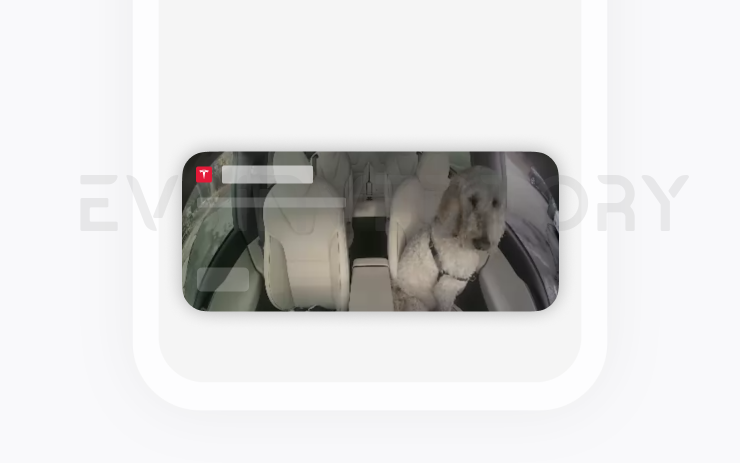
Dog Mode Live Activity on iOS (part of 2025.46.5)
Keep an eye on your pet! When Dog Mode is active, you’ll see a Live Activity on your iPhone with live updates on temperature and climate conditions. If you have Premium Connectivity, you’ll also get periodic snapshots of your vehicle’s cabin. Requires Tesla App version 4.51.5+.
- Seen in AU
- Seen on MY MY(J)
- Seen on AP Hardware HW4
- Seen on MCU hardware Ryzen
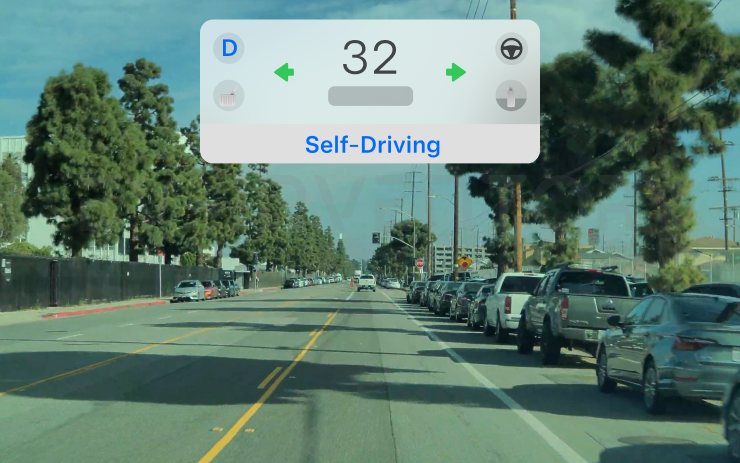
Dashcam Viewer Update (part of 2025.46.5)
Dashcam clips now include additional details such as speed, steering wheel angle, and self-driving state. This information appears in the Dashcam Viewer during playback on both the vehicle display and the Tesla App. Requires Premium Connectivity and Tesla App version 4.51.5+.
To enable viewing on your phone, go to Controls > Safety and turn on View Camera via Mobile App.
- Seen in AU
- Seen on MY MY(J)
- Seen on AP Hardware HW4
- Seen on MCU hardware Ryzen
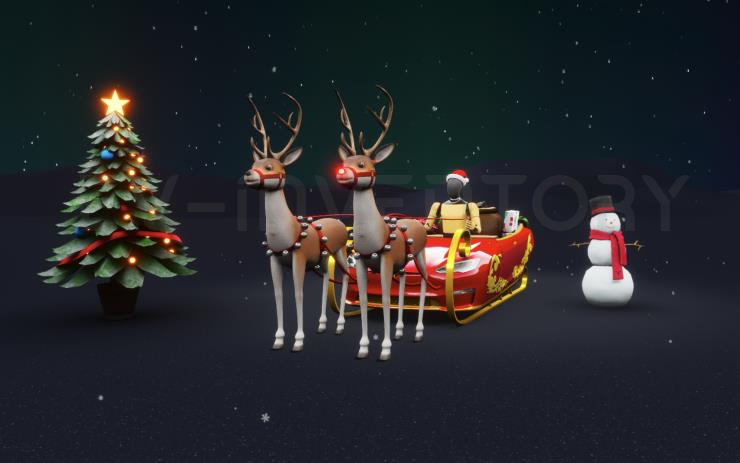
Santa Mode Updates (part of 2025.46.5)
Spread holiday cheer year round and transform your in-car experience with holiday themed effects. Santa Mode now adds festive snowmen, trees, a lock chime, and snow effects for a 3D visual treat.
Go to App Launcher > Toybox > Santa.

- Seen in AU
- Seen on MY MY(J)
- Seen on AP Hardware HW4
- Seen on MCU hardware Ryzen
Light Show Update (part of 2025.46.5)
Time to celebrate with the latest Light Show - Jingle Rush. You can play the show instantly or schedule it up to 10 minutes in advance, either on a single vehicle or synced with friends. Light Show enthusiasts can control interior lighting, add display color effects, and create longer custom shows. To play a custom show, save the show files in a "LightShow" folder on your flash drive, connect, and select.
Start the show from your Tesla App or go App Launcher > Toybox > Light Show on your vehicle's touchscreen.
- Seen in AU
- Seen on MY MY(J)
- Seen on AP Hardware HW4
- Seen on MCU hardware Ryzen
Paint Shop (part of 2025.46.5)
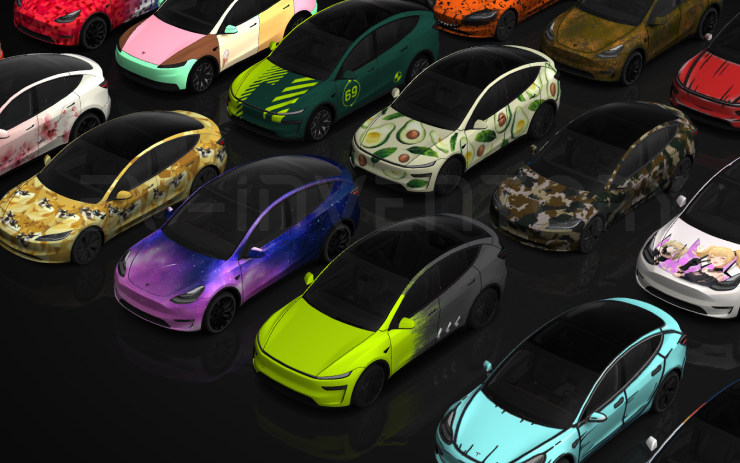
Personalize your Tesla avatar with window tints, custom wraps, and license plates. Use one of many preloaded designs or create and upload your own using a USB flash drive to make your vehicle unique.
Go to App Launcher > Toybox > Paint Shop or tap the paint or license plate button in Controls > Software.

- Seen in AU
- Seen on MY MY(J)
- Seen on AP Hardware HW4
- Seen on MCU hardware Ryzen
Navigation Improvements (part of 2025.46.5)
You can now reorder your navigation favorites, set Home or Work by dropping a pin anywhere on the map, and view suggested destinations based on your recent trips and habits.
- Seen in AU
- Seen on MY(J)
- Seen on AP Hardware HW4
- Seen on MCU hardware Ryzen
Phone Left Behind (part of 2025.46.5)
Your vehicle will chime a few seconds after the doors close if a phone key is inside the cabin or a phone is left on the wireless charger and no occupants are detected. Phone key detection requires UWB-supported devices.
Go to Controls > Locks > Phone Left Behind Chime.

- Seen in AU
- Seen on MY MY(J)
- Seen on AP Hardware HW4
- Seen on MCU hardware Ryzen
Save Charge Limit by Location (part of 2025.46.5)
You can now save a charge limit for your current location while parked, and it will be applied automatically next time you charge there.
Go to Controls > Charging.
- Seen in AU
- Seen on MY MY(J)
- Seen on AP Hardware HW4
- Seen on MCU hardware Ryzen
SpaceX Docking Simulator (part of 2025.46.5)
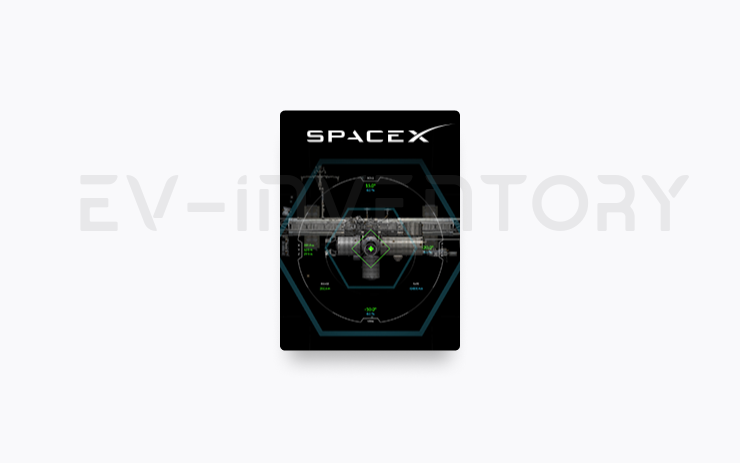
Become an astronaut and prove your skills by docking with the International Space Station. Control and guide the rocket in this 3D docking simulator game using a set of controls based on actual interfaces used by NASA astronauts.
To play, shift into Park (P), and go to App Launcher > Arcade > SpaceX.
- Seen in AU
- Seen on MY MY(J)
- Seen on AP Hardware HW4
- Seen on MCU hardware Ryzen
FSD (Supervised) v13.2.9 Down Under (part of 2025.46.5)
FSD (Supervised) v13 Down Under upgrades every part of the end-to-end driving network.
Includes:
- 36 Hz, full-resolution AI4 video inputs
- Native AI4 inputs and neural network architectures
- 4.2x data scaling
- 5x training compute scaling (enabled by the Cortex cluster)
- Reduced photon-to-control latency by 2x
- Integrated unpark, reverse, and park capabilities
- Improved reward predictions for collision avoidance
- Improved camera cleaning
- Redesigned controller for smoother, more accurate tracking
- Dynamic routing around road closures, which displays them along an affected route when they are detected by the fleet
Upcoming Improvements:
- 3x model size scaling
- 3x model context length scaling
- Audio inputs for better handling of emergency vehicles
- Improved reward predictions for navigation
- Improvements to false braking and slower driving in parking lots
- Support for destination options including pulling over, parking in a spot, driveway, or garage
- Efficient representation of maps and navigation inputs
- Improved handling of camera occlusions

- Seen in AU
- Seen on MY MY(J)
- Seen on AP Hardware HW4
- Seen on MCU hardware Ryzen
Full Self-Driving (Supervised) Down Under (part of 2025.46.5)
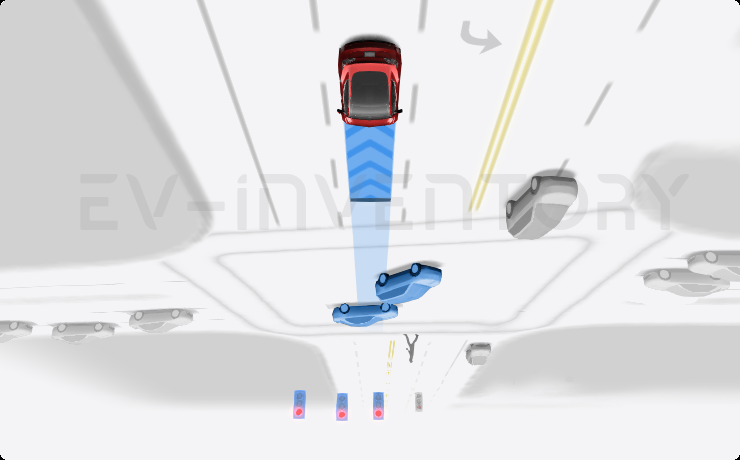
Under your supervision, Full Self-Driving (Supervised) Down Under can drive your Tesla almost anywhere. It will make lane changes, select forks to follow your navigation route, navigate around other vehicles and objects, and make left and right turns. You and anyone you authorise must use additional caution and remain attentive. It does not make your vehicle autonomous. Do not become complacent.
Full Self-Driving (Supervised) Down Under is enabled on your vehicle. To use the feature, press the right scroll wheel button once. You can disable Full Self-Driving (Supervised) Down Under in Autopilot Settings.
Be aware of road conditions or hazards (such as pot holes and speed bumps) and operate the vehicle responsibly under all circumstances.

- Seen in AU
- Seen on MY MY(J)
- Seen on AP Hardware HW4
- Seen on MCU hardware Ryzen
Vision-Based Attention Monitoring (part of 2025.46.5)
When Full Self-Driving (Supervised) is enabled, the driver monitoring system primarily relies on the cabin camera to determine driver attentiveness. Cabin camera must have clear visibility (e.g., camera is not occluded, eyes, arms, are visible, there is sufficient cabin illumination, and the driver is looking forward at the road without sunglasses, or other objects covering their eyes). In other circumstances, the driver monitoring system will primarily rely on torque-based (steering wheel) monitoring to detect driver attentiveness.
If the cabin camera detects inattentiveness, a warning will appear. The warning can be dismissed by the driver immediately reverting their attention back to the road ahead. Warnings will escalate depending on the nature and frequency of detected inattentiveness, with continuous inattention leading to a Strikeout.

- Seen in AU
- Seen on MY MY(J)
- Seen on AP Hardware HW4
- Seen on MCU hardware Ryzen
Minor Updates (part of 2025.46.5)
- Enable or disable wireless phone charging pads in Controls > Charging.
- Your vehicle will now send a mobile alert if any cabin door is left open while Dog Mode is active.
- Add Spotify tracks to your queue right from the search screen.
- Scroll through large Spotify playlists, albums, podcasts, audiobooks, and your library seamlessly, without paging.
- Take the vibes up another level with rainbow colors during Rave Cave. Accent lights color will change along with the beats of your music. Go to App Launcher > Toybox > Light Sync.
- Lock Sound now includes Light Cycle from Tron Mode. Go to App Launcher > Toybox > Boombox > Lock Sound.
- Allow your vehicle to share charging data with Tesla to support features like Charge Stats in the Tesla app.
- Seen in AU
- Seen on MY
- Seen on AP Hardware HW4
- Seen on MCU hardware Ryzen
Phone Left On Wireless Charger (part of 2025.46.5)
Your vehicle will chime a few seconds after the doors close if a phone is left on the wireless charger and no occupants are detected.
Go to Controls > Locks > Phone Left On Wireless Charger Chime.
Other release notes for the family: 2025.46
Tesla Photobooth (part of 2025.46.5)
Turn your car into a photobooth! Take selfies from inside your Tesla and give yourself a makeover with fun filters, stickers, and emojis. Share your stylish photos with friends and family right from the Tesla App. Your car must be in Park. Requires Tesla App version 4.51.5+.
Go to App Launcher > Toybox > Photobooth.
Seen in AU
Seen on MY MY(J)
Seen on AP versions AP4
Seen on MCU hardware Ryzen
Dog Mode Live Activity on iOS (part of 2025.46.5)
Keep an eye on your pet! When Dog Mode is active, you’ll see a Live Activity on your iPhone with live updates on temperature and climate conditions. If you have Premium Connectivity, you’ll also get periodic snapshots of your vehicle’s cabin. Requires Tesla App version 4.51.5+.
Seen in AU
Seen on MY MY(J)
Seen on AP versions AP4
Seen on MCU hardware Ryzen
Dashcam Viewer Update (part of 2025.46.5)
Dashcam clips now include additional details such as speed, steering wheel angle, and self-driving state. This information appears in the Dashcam Viewer during playback on both the vehicle display and the Tesla App. Requires Premium Connectivity and Tesla App version 4.51.5+.
To enable viewing on your phone, go to Controls > Safety and turn on View Camera via Mobile App.
Seen in AU
Seen on MY MY(J)
Seen on AP versions AP4
Seen on MCU hardware Ryzen
Santa Mode Updates (part of 2025.46.5)
Spread holiday cheer year round and transform your in-car experience with holiday themed effects. Santa Mode now adds festive snowmen, trees, a lock chime, and snow effects for a 3D visual treat.
Go to App Launcher > Toybox > Santa.
Seen in AU
Seen on MY MY(J)
Seen on AP versions AP4
Seen on MCU hardware Ryzen
Light Show Update (part of 2025.46.5)
Time to celebrate with the latest Light Show - Jingle Rush. You can play the show instantly or schedule it up to 10 minutes in advance, either on a single vehicle or synced with friends. Light Show enthusiasts can control interior lighting, add display color effects, and create longer custom shows. To play a custom show, save the show files in a "LightShow" folder on your flash drive, connect, and select.
Start the show from your Tesla App or go App Launcher > Toybox > Light Show on your vehicle's touchscreen.
Seen in AU
Seen on MY MY(J)
Seen on AP versions AP4
Seen on MCU hardware Ryzen
Paint Shop (part of 2025.46.5)
Personalize your Tesla avatar with window tints, custom wraps, and license plates. Use one of many preloaded designs or create and upload your own using a USB flash drive to make your vehicle unique.
Go to App Launcher > Toybox > Paint Shop or tap the paint or license plate button in Controls > Software.
Seen in AU
Seen on MY MY(J)
Seen on AP versions AP4
Seen on MCU hardware Ryzen
Navigation Improvements (part of 2025.46.5)
You can now reorder your navigation favorites, set Home or Work by dropping a pin anywhere on the map, and view suggested destinations based on your recent trips and habits.
Seen in AU
Seen on MY MY(J)
Seen on AP versions AP4
Seen on MCU hardware Ryzen
Phone Left Behind (part of 2025.46.5)
Your vehicle will chime a few seconds after the doors close if a phone key is inside the cabin or a phone is left on the wireless charger and no occupants are detected. Phone key detection requires UWB-supported devices.
Go to Controls > Locks > Phone Left Behind Chime.
Seen in AU
Seen on MY(J)
Seen on AP versions AP4
Seen on MCU hardware Ryzen
Save Charge Limit by Location (part of 2025.46.5)
You can now save a charge limit for your current location while parked, and it will be applied automatically next time you charge there.
Go to Controls > Charging.
Seen in AU
Seen on MY MY(J)
Seen on AP versions AP4
Seen on MCU hardware Ryzen
SpaceX Docking Simulator (part of 2025.46.5)
Become an astronaut and prove your skills by docking with the International Space Station. Control and guide the rocket in this 3D docking simulator game using a set of controls based on actual interfaces used by NASA astronauts.
To play, shift into Park (P), and go to App Launcher > Arcade > SpaceX.
Seen in AU
Seen on MY MY(J)
Seen on AP versions AP4
Seen on MCU hardware Ryzen
FSD (Supervised) v13.2.9 Down Under (part of 2025.46.5)
FSD (Supervised) v13 Down Under upgrades every part of the end-to-end driving network.
Includes:
- 36 Hz, full-resolution AI4 video inputs
- Native AI4 inputs and neural network architectures
- 4.2x data scaling
- 5x training compute scaling (enabled by the Cortex cluster)
- Reduced photon-to-control latency by 2x
- Integrated unpark, reverse, and park capabilities
- Improved reward predictions for collision avoidance
- Improved camera cleaning
- Redesigned controller for smoother, more accurate tracking
- Dynamic routing around road closures, which displays them along an affected route when they are detected by the fleet
Upcoming Improvements:
- 3x model size scaling
- 3x model context length scaling
- Audio inputs for better handling of emergency vehicles
- Improved reward predictions for navigation
- Improvements to false braking and slower driving in parking lots
- Support for destination options including pulling over, parking in a spot, driveway, or garage
- Efficient representation of maps and navigation inputs
- Improved handling of camera occlusions
Seen in AU
Seen on MY MY(J)
Seen on AP versions AP4
Seen on MCU hardware Ryzen
Full Self-Driving (Supervised) Down Under (part of 2025.46.5)
Under your supervision, Full Self-Driving (Supervised) Down Under can drive your Tesla almost anywhere. It will make lane changes, select forks to follow your navigation route, navigate around other vehicles and objects, and make left and right turns. You and anyone you authorise must use additional caution and remain attentive. It does not make your vehicle autonomous. Do not become complacent.
Full Self-Driving (Supervised) Down Under is enabled on your vehicle. To use the feature, press the right scroll wheel button once. You can disable Full Self-Driving (Supervised) Down Under in Autopilot Settings.
Be aware of road conditions or hazards (such as pot holes and speed bumps) and operate the vehicle responsibly under all circumstances.
Seen in AU
Seen on MY MY(J)
Seen on AP versions AP4
Seen on MCU hardware Ryzen
Vision-Based Attention Monitoring (part of 2025.46.5)
When Full Self-Driving (Supervised) is enabled, the driver monitoring system primarily relies on the cabin camera to determine driver attentiveness. Cabin camera must have clear visibility (e.g., camera is not occluded, eyes, arms, are visible, there is sufficient cabin illumination, and the driver is looking forward at the road without sunglasses, or other objects covering their eyes). In other circumstances, the driver monitoring system will primarily rely on torque-based (steering wheel) monitoring to detect driver attentiveness.
If the cabin camera detects inattentiveness, a warning will appear. The warning can be dismissed by the driver immediately reverting their attention back to the road ahead. Warnings will escalate depending on the nature and frequency of detected inattentiveness, with continuous inattention leading to a Strikeout.
Seen in AU
Seen on MY MY(J)
Seen on AP versions AP4
Seen on MCU hardware Ryzen
Minor Updates (part of 2025.46.5)
- Enable or disable wireless phone charging pads in Controls > Charging.
- Your vehicle will now send a mobile alert if any cabin door is left open while Dog Mode is active.
- Add Spotify tracks to your queue right from the search screen.
- Scroll through large Spotify playlists, albums, podcasts, audiobooks, and your library seamlessly, without paging.
- Take the vibes up another level with rainbow colors during Rave Cave. Accent lights color will change along with the beats of your music. Go to App Launcher > Toybox > Light Sync.
- Lock Sound now includes Light Cycle from Tron Mode. Go to App Launcher > Toybox > Boombox > Lock Sound.
- Allow your vehicle to share charging data with Tesla to support features like Charge Stats in the Tesla app.
Seen in AU
Seen on MY MY(J)
Seen on AP versions AP4
Seen on MCU hardware Ryzen
Phone Left On Wireless Charger (part of 2025.46.5)
Your vehicle will chime a few seconds after the doors close if a phone is left on the wireless charger and no occupants are detected.
Go to Controls > Locks > Phone Left On Wireless Charger Chime.
Seen in AU
Seen on MY
Seen on AP versions AP4
Seen on MCU hardware Ryzen
How do I get the latest Software Update from Tesla?
- Seen in AU
- Seen on MY MY(J)
- Seen on AP Hardware HW4
- Seen on MCU hardware Ryzen
Tesla Photobooth (part of 2025.46.5)
Turn your car into a photobooth! Take selfies from inside your Tesla and give yourself a makeover with fun filters, stickers, and emojis. Share your stylish photos with friends and family right from the Tesla App. Your car must be in Park. Requires Tesla App version 4.51.5+.
Go to App Launcher > Toybox > Photobooth.
- Seen in AU
- Seen on MY MY(J)
- Seen on AP Hardware HW4
- Seen on MCU hardware Ryzen
Dog Mode Live Activity on iOS (part of 2025.46.5)
Keep an eye on your pet! When Dog Mode is active, you’ll see a Live Activity on your iPhone with live updates on temperature and climate conditions. If you have Premium Connectivity, you’ll also get periodic snapshots of your vehicle’s cabin. Requires Tesla App version 4.51.5+.
- Seen in AU
- Seen on MY MY(J)
- Seen on AP Hardware HW4
- Seen on MCU hardware Ryzen
Dashcam Viewer Update (part of 2025.46.5)
Dashcam clips now include additional details such as speed, steering wheel angle, and self-driving state. This information appears in the Dashcam Viewer during playback on both the vehicle display and the Tesla App. Requires Premium Connectivity and Tesla App version 4.51.5+.
To enable viewing on your phone, go to Controls > Safety and turn on View Camera via Mobile App.
- Seen in AU
- Seen on MY MY(J)
- Seen on AP Hardware HW4
- Seen on MCU hardware Ryzen
Santa Mode Updates (part of 2025.46.5)
Spread holiday cheer year round and transform your in-car experience with holiday themed effects. Santa Mode now adds festive snowmen, trees, a lock chime, and snow effects for a 3D visual treat.
Go to App Launcher > Toybox > Santa.
- Seen in AU
- Seen on MY MY(J)
- Seen on AP Hardware HW4
- Seen on MCU hardware Ryzen
Light Show Update (part of 2025.46.5)
Time to celebrate with the latest Light Show - Jingle Rush. You can play the show instantly or schedule it up to 10 minutes in advance, either on a single vehicle or synced with friends. Light Show enthusiasts can control interior lighting, add display color effects, and create longer custom shows. To play a custom show, save the show files in a "LightShow" folder on your flash drive, connect, and select.
Start the show from your Tesla App or go App Launcher > Toybox > Light Show on your vehicle's touchscreen.
- Seen in AU
- Seen on MY MY(J)
- Seen on AP Hardware HW4
- Seen on MCU hardware Ryzen
Paint Shop (part of 2025.46.5)
Personalize your Tesla avatar with window tints, custom wraps, and license plates. Use one of many preloaded designs or create and upload your own using a USB flash drive to make your vehicle unique.
Go to App Launcher > Toybox > Paint Shop or tap the paint or license plate button in Controls > Software.
- Seen in AU
- Seen on MY MY(J)
- Seen on AP Hardware HW4
- Seen on MCU hardware Ryzen
Navigation Improvements (part of 2025.46.5)
You can now reorder your navigation favorites, set Home or Work by dropping a pin anywhere on the map, and view suggested destinations based on your recent trips and habits.
- Seen in AU
- Seen on MY(J)
- Seen on AP Hardware HW4
- Seen on MCU hardware Ryzen
Phone Left Behind (part of 2025.46.5)
Your vehicle will chime a few seconds after the doors close if a phone key is inside the cabin or a phone is left on the wireless charger and no occupants are detected. Phone key detection requires UWB-supported devices.
Go to Controls > Locks > Phone Left Behind Chime.
- Seen in AU
- Seen on MY MY(J)
- Seen on AP Hardware HW4
- Seen on MCU hardware Ryzen
Save Charge Limit by Location (part of 2025.46.5)
You can now save a charge limit for your current location while parked, and it will be applied automatically next time you charge there.
Go to Controls > Charging.
- Seen in AU
- Seen on MY MY(J)
- Seen on AP Hardware HW4
- Seen on MCU hardware Ryzen
SpaceX Docking Simulator (part of 2025.46.5)
Become an astronaut and prove your skills by docking with the International Space Station. Control and guide the rocket in this 3D docking simulator game using a set of controls based on actual interfaces used by NASA astronauts.
To play, shift into Park (P), and go to App Launcher > Arcade > SpaceX.
- Seen in AU
- Seen on MY MY(J)
- Seen on AP Hardware HW4
- Seen on MCU hardware Ryzen
FSD (Supervised) v13.2.9 Down Under (part of 2025.46.5)
FSD (Supervised) v13 Down Under upgrades every part of the end-to-end driving network.
Includes:
- 36 Hz, full-resolution AI4 video inputs
- Native AI4 inputs and neural network architectures
- 4.2x data scaling
- 5x training compute scaling (enabled by the Cortex cluster)
- Reduced photon-to-control latency by 2x
- Integrated unpark, reverse, and park capabilities
- Improved reward predictions for collision avoidance
- Improved camera cleaning
- Redesigned controller for smoother, more accurate tracking
- Dynamic routing around road closures, which displays them along an affected route when they are detected by the fleet
Upcoming Improvements:
- 3x model size scaling
- 3x model context length scaling
- Audio inputs for better handling of emergency vehicles
- Improved reward predictions for navigation
- Improvements to false braking and slower driving in parking lots
- Support for destination options including pulling over, parking in a spot, driveway, or garage
- Efficient representation of maps and navigation inputs
- Improved handling of camera occlusions
- Seen in AU
- Seen on MY MY(J)
- Seen on AP Hardware HW4
- Seen on MCU hardware Ryzen
Full Self-Driving (Supervised) Down Under (part of 2025.46.5)
Under your supervision, Full Self-Driving (Supervised) Down Under can drive your Tesla almost anywhere. It will make lane changes, select forks to follow your navigation route, navigate around other vehicles and objects, and make left and right turns. You and anyone you authorise must use additional caution and remain attentive. It does not make your vehicle autonomous. Do not become complacent.
Full Self-Driving (Supervised) Down Under is enabled on your vehicle. To use the feature, press the right scroll wheel button once. You can disable Full Self-Driving (Supervised) Down Under in Autopilot Settings.
Be aware of road conditions or hazards (such as pot holes and speed bumps) and operate the vehicle responsibly under all circumstances.
- Seen in AU
- Seen on MY MY(J)
- Seen on AP Hardware HW4
- Seen on MCU hardware Ryzen
Vision-Based Attention Monitoring (part of 2025.46.5)
When Full Self-Driving (Supervised) is enabled, the driver monitoring system primarily relies on the cabin camera to determine driver attentiveness. Cabin camera must have clear visibility (e.g., camera is not occluded, eyes, arms, are visible, there is sufficient cabin illumination, and the driver is looking forward at the road without sunglasses, or other objects covering their eyes). In other circumstances, the driver monitoring system will primarily rely on torque-based (steering wheel) monitoring to detect driver attentiveness.
If the cabin camera detects inattentiveness, a warning will appear. The warning can be dismissed by the driver immediately reverting their attention back to the road ahead. Warnings will escalate depending on the nature and frequency of detected inattentiveness, with continuous inattention leading to a Strikeout.
- Seen in AU
- Seen on MY MY(J)
- Seen on AP Hardware HW4
- Seen on MCU hardware Ryzen
Minor Updates (part of 2025.46.5)
- Enable or disable wireless phone charging pads in Controls > Charging.
- Your vehicle will now send a mobile alert if any cabin door is left open while Dog Mode is active.
- Add Spotify tracks to your queue right from the search screen.
- Scroll through large Spotify playlists, albums, podcasts, audiobooks, and your library seamlessly, without paging.
- Take the vibes up another level with rainbow colors during Rave Cave. Accent lights color will change along with the beats of your music. Go to App Launcher > Toybox > Light Sync.
- Lock Sound now includes Light Cycle from Tron Mode. Go to App Launcher > Toybox > Boombox > Lock Sound.
- Allow your vehicle to share charging data with Tesla to support features like Charge Stats in the Tesla app.
- Seen in AU
- Seen on MY
- Seen on AP Hardware HW4
- Seen on MCU hardware Ryzen
Phone Left On Wireless Charger (part of 2025.46.5)
Your vehicle will chime a few seconds after the doors close if a phone is left on the wireless charger and no occupants are detected.
Go to Controls > Locks > Phone Left On Wireless Charger Chime.
Tesla Photobooth (part of 2025.46.5)
Turn your car into a photobooth! Take selfies from inside your Tesla and give yourself a makeover with fun filters, stickers, and emojis. Share your stylish photos with friends and family right from the Tesla App. Your car must be in Park. Requires Tesla App version 4.51.5+.
Go to App Launcher > Toybox > Photobooth.
Seen in AU
Seen on MY MY(J)
Seen on AP versions AP4
Seen on MCU hardware Ryzen
Dog Mode Live Activity on iOS (part of 2025.46.5)
Keep an eye on your pet! When Dog Mode is active, you’ll see a Live Activity on your iPhone with live updates on temperature and climate conditions. If you have Premium Connectivity, you’ll also get periodic snapshots of your vehicle’s cabin. Requires Tesla App version 4.51.5+.
Seen in AU
Seen on MY MY(J)
Seen on AP versions AP4
Seen on MCU hardware Ryzen
Dashcam Viewer Update (part of 2025.46.5)
Dashcam clips now include additional details such as speed, steering wheel angle, and self-driving state. This information appears in the Dashcam Viewer during playback on both the vehicle display and the Tesla App. Requires Premium Connectivity and Tesla App version 4.51.5+.
To enable viewing on your phone, go to Controls > Safety and turn on View Camera via Mobile App.
Seen in AU
Seen on MY MY(J)
Seen on AP versions AP4
Seen on MCU hardware Ryzen
Santa Mode Updates (part of 2025.46.5)
Spread holiday cheer year round and transform your in-car experience with holiday themed effects. Santa Mode now adds festive snowmen, trees, a lock chime, and snow effects for a 3D visual treat.
Go to App Launcher > Toybox > Santa.
Seen in AU
Seen on MY MY(J)
Seen on AP versions AP4
Seen on MCU hardware Ryzen
Light Show Update (part of 2025.46.5)
Time to celebrate with the latest Light Show - Jingle Rush. You can play the show instantly or schedule it up to 10 minutes in advance, either on a single vehicle or synced with friends. Light Show enthusiasts can control interior lighting, add display color effects, and create longer custom shows. To play a custom show, save the show files in a "LightShow" folder on your flash drive, connect, and select.
Start the show from your Tesla App or go App Launcher > Toybox > Light Show on your vehicle's touchscreen.
Seen in AU
Seen on MY MY(J)
Seen on AP versions AP4
Seen on MCU hardware Ryzen
Paint Shop (part of 2025.46.5)
Personalize your Tesla avatar with window tints, custom wraps, and license plates. Use one of many preloaded designs or create and upload your own using a USB flash drive to make your vehicle unique.
Go to App Launcher > Toybox > Paint Shop or tap the paint or license plate button in Controls > Software.
Seen in AU
Seen on MY MY(J)
Seen on AP versions AP4
Seen on MCU hardware Ryzen
Navigation Improvements (part of 2025.46.5)
You can now reorder your navigation favorites, set Home or Work by dropping a pin anywhere on the map, and view suggested destinations based on your recent trips and habits.
Seen in AU
Seen on MY MY(J)
Seen on AP versions AP4
Seen on MCU hardware Ryzen
Phone Left Behind (part of 2025.46.5)
Your vehicle will chime a few seconds after the doors close if a phone key is inside the cabin or a phone is left on the wireless charger and no occupants are detected. Phone key detection requires UWB-supported devices.
Go to Controls > Locks > Phone Left Behind Chime.
Seen in AU
Seen on MY(J)
Seen on AP versions AP4
Seen on MCU hardware Ryzen
Save Charge Limit by Location (part of 2025.46.5)
You can now save a charge limit for your current location while parked, and it will be applied automatically next time you charge there.
Go to Controls > Charging.
Seen in AU
Seen on MY MY(J)
Seen on AP versions AP4
Seen on MCU hardware Ryzen
SpaceX Docking Simulator (part of 2025.46.5)
Become an astronaut and prove your skills by docking with the International Space Station. Control and guide the rocket in this 3D docking simulator game using a set of controls based on actual interfaces used by NASA astronauts.
To play, shift into Park (P), and go to App Launcher > Arcade > SpaceX.
Seen in AU
Seen on MY MY(J)
Seen on AP versions AP4
Seen on MCU hardware Ryzen
FSD (Supervised) v13.2.9 Down Under (part of 2025.46.5)
FSD (Supervised) v13 Down Under upgrades every part of the end-to-end driving network.
Includes:
- 36 Hz, full-resolution AI4 video inputs
- Native AI4 inputs and neural network architectures
- 4.2x data scaling
- 5x training compute scaling (enabled by the Cortex cluster)
- Reduced photon-to-control latency by 2x
- Integrated unpark, reverse, and park capabilities
- Improved reward predictions for collision avoidance
- Improved camera cleaning
- Redesigned controller for smoother, more accurate tracking
- Dynamic routing around road closures, which displays them along an affected route when they are detected by the fleet
Upcoming Improvements:
- 3x model size scaling
- 3x model context length scaling
- Audio inputs for better handling of emergency vehicles
- Improved reward predictions for navigation
- Improvements to false braking and slower driving in parking lots
- Support for destination options including pulling over, parking in a spot, driveway, or garage
- Efficient representation of maps and navigation inputs
- Improved handling of camera occlusions
Seen in AU
Seen on MY MY(J)
Seen on AP versions AP4
Seen on MCU hardware Ryzen
Full Self-Driving (Supervised) Down Under (part of 2025.46.5)
Under your supervision, Full Self-Driving (Supervised) Down Under can drive your Tesla almost anywhere. It will make lane changes, select forks to follow your navigation route, navigate around other vehicles and objects, and make left and right turns. You and anyone you authorise must use additional caution and remain attentive. It does not make your vehicle autonomous. Do not become complacent.
Full Self-Driving (Supervised) Down Under is enabled on your vehicle. To use the feature, press the right scroll wheel button once. You can disable Full Self-Driving (Supervised) Down Under in Autopilot Settings.
Be aware of road conditions or hazards (such as pot holes and speed bumps) and operate the vehicle responsibly under all circumstances.
Seen in AU
Seen on MY MY(J)
Seen on AP versions AP4
Seen on MCU hardware Ryzen
Vision-Based Attention Monitoring (part of 2025.46.5)
When Full Self-Driving (Supervised) is enabled, the driver monitoring system primarily relies on the cabin camera to determine driver attentiveness. Cabin camera must have clear visibility (e.g., camera is not occluded, eyes, arms, are visible, there is sufficient cabin illumination, and the driver is looking forward at the road without sunglasses, or other objects covering their eyes). In other circumstances, the driver monitoring system will primarily rely on torque-based (steering wheel) monitoring to detect driver attentiveness.
If the cabin camera detects inattentiveness, a warning will appear. The warning can be dismissed by the driver immediately reverting their attention back to the road ahead. Warnings will escalate depending on the nature and frequency of detected inattentiveness, with continuous inattention leading to a Strikeout.
Seen in AU
Seen on MY MY(J)
Seen on AP versions AP4
Seen on MCU hardware Ryzen
Minor Updates (part of 2025.46.5)
- Enable or disable wireless phone charging pads in Controls > Charging.
- Your vehicle will now send a mobile alert if any cabin door is left open while Dog Mode is active.
- Add Spotify tracks to your queue right from the search screen.
- Scroll through large Spotify playlists, albums, podcasts, audiobooks, and your library seamlessly, without paging.
- Take the vibes up another level with rainbow colors during Rave Cave. Accent lights color will change along with the beats of your music. Go to App Launcher > Toybox > Light Sync.
- Lock Sound now includes Light Cycle from Tron Mode. Go to App Launcher > Toybox > Boombox > Lock Sound.
- Allow your vehicle to share charging data with Tesla to support features like Charge Stats in the Tesla app.
Seen in AU
Seen on MY MY(J)
Seen on AP versions AP4
Seen on MCU hardware Ryzen
Phone Left On Wireless Charger (part of 2025.46.5)
Your vehicle will chime a few seconds after the doors close if a phone is left on the wireless charger and no occupants are detected.
Go to Controls > Locks > Phone Left On Wireless Charger Chime.
Seen in AU
Seen on MY
Seen on AP versions AP4
Seen on MCU hardware Ryzen
There is o reliable way to get the a software update from Tesla unless it is linked to a service request.
I do not have all the features listed?
Some features are only available on some models, versions of hardware, software options purchased and even countries. We list as much information as we can as to which of those are required for each feature based on the information taken from real cars.